duet software installation and running guide#
For analysis of duet construct sequenced on an Illumina platform and prepared using:
biomodal duet multiomics solution +modC
biomodal duet multiomics solution evoC
This documentation is compatible with duet pipeline v1.5.0 and biomodal CLI v2.0.0 or later.
Warning
For Research Use Only. Not for use in diagnostic procedures.
Getting started with the biomodal duet pipeline#
Overview#
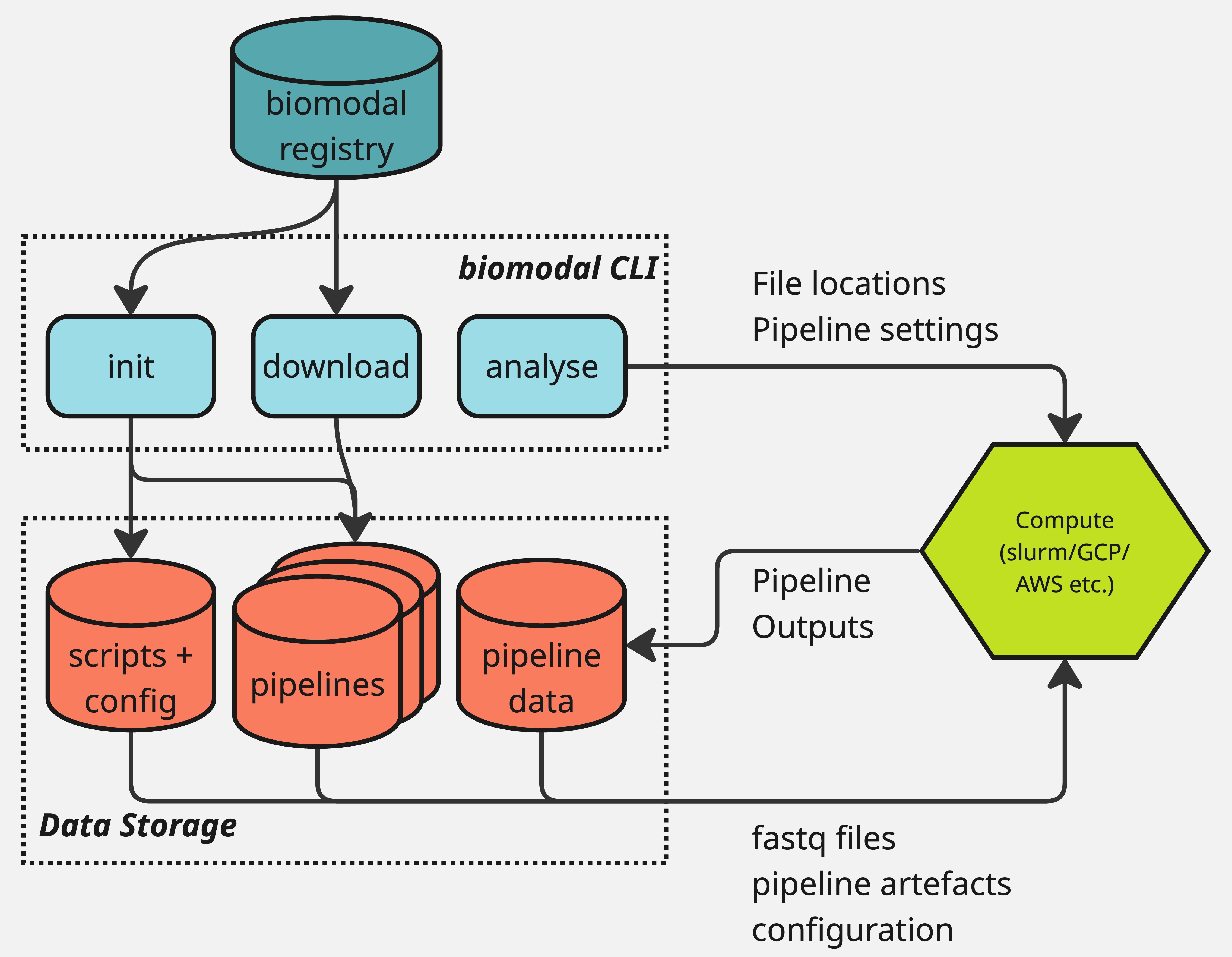
The biomodal duet multiomics pipeline is a bioinformatics workflow designed to analyse FASTQ files produced by next generation sequencing of the duet construct generated using biomodal duet multiomics solutions. Before running the pipeline, you need to install the biomodal Command Line Interface (CLI) on a cloud platform or High-Performance Computing (HPC) cluster.
About this guide#
This guide walks you through:
Downloading the required files
Installing the CLI
Preparing your compute environment
Using the CLI
Importing the pipeline
Updating the pipeline
Important
The biomodal duet multiomics pipeline runs in a Linux environment and we recommend the use of a recent version of Linux.
It is recommended that setup and installation be performed by your system administrator (i.e., the person responsible for managing your organisation’s IT systems).
Sections which need to be completed by a system administrator will be shown by the following:
Caution
This section contains information intended for system administrators
Once the setup is complete, you’ll be able to run your analyses with minimal technical involvement. If you need support with any of the steps or installation, please contact us at support@biomodal.com. If your inquiry is related to the CLI or duet pipeline software, please include the output zip file of the biomodal get diagnostics command in your inquiry.
What’s included in the biomodal duet pipeline#
Pipeline components
Standard and bespoke trimming of duet +modC and duet evoC FASTQ files
FASTQ resolution to convert raw paired-end duet +modC and duet evoC reads into resolved, error-suppressed 4-base genomic reads with accompanying epigenomic information
Reference genome and control alignment using BWA_MEM
Lane-merging of aligned BAM files
Forking of aligned genome reads and control reads into separate BAM files and analysis pathways
Deduplication of the genome and long control BAM files
Pipeline outputs
Modified cytosine quantification in CpG context
Optional modified cytosine quantification in CHG and CHH contexts
Germline variant calling with optional joint variant calling, somatic variant calling, and allele-specific methylation calling
Genetic accuracy analysis using controls
Analysis and generation of quality metrics associated with the genome-aligned reads and the control-aligned reads
Generation of summary reports in Excel and HTML formats
About the pipeline and Command Line Interface (CLI)#
Important
The biomodal CLI and duet pipeline is not supported on Windows platforms. We recommend you use a recent version of Linux.
The biomodal pipeline and CLI utilises Nextflow as the orchestration tool that will leverage the capabilities of your compute platform to process your data through the duet pipeline.
Nextflow will act as an orchestrator performing the following tasks:
Launching Virtual Machines or HPC nodes
Copying input files to the virtual machines or HPC nodes
Downloading and running container images with appropriate software dependencies
Executing analyses on the virtual machines or HPC nodes
Transferring outputs from analyses to local or cloud storage
Organise output files into a convenient directory structure
Coordinating the channelling of outputs from one stage of analysis to the next
The following instructions are intended to be executed at the command line with Bash on a Linux platform, or via a Cloud Shell in a browser.
Bash is a format of command structure command [OPTIONS] arguments.
If you prefer to use the graphical user interface (GUI) of your Cloud provider console through the browser, searching the command line instructions will lead you to the platform specific documentation with the steps that need to be taken in the relevant cloud console.
Support#
Feel free to contact us at support@biomodal.com. If your inquiry is related to the CLI or duet pipeline software, please include the output zip file of the biomodal get diagnostics command in your inquiry.
Downloading the installation script#
Before installing the CLI, you need to download the biomodal CLI binary.
This section helps you:
Choose the correct approach for your system (HPC or Cloud)
Confirm minimal software requirements
Download the CLI
Important
The following section involves cloud infrastructure setup or requires HPC admin privileges so must be performed by a system administrator.
Once the setup is complete, the analyses can be run with minimal technical involvement.
Choose your environment#
Caution
This section contains information intended for system administrators
The biomodal duet pipeline supports these environments:
HPC clusters (running on Linux OS only)
Cloud platforms (AWS and GCP)
Check software requirements & permissions#
Caution
This section contains information intended for system administrators
The software required on your system depends on the platform you intend to use.
Please ensure that the following tools are installed:
- Bash (4+)
To check your version, run:
bash --version- Java (17+, up to 24)
To see which version of Java you have, run:
java -versionIf you don’t have Java installed, please see the Java installation guide. Most OpenJDK versions are also compatible as long as you choose a distribution that is supported by Seqera Nextflow.
- Docker (20.10+)
A running Docker daemon is only required during the initial setup (i.e., when running
biomodal init) to transfer the Docker images into your cloud’s Docker images registry. It is not required when running analyses. To check your version, run:docker --versionIf you don’t have Docker installed, please see the Docker installation guide.
Please see the cloud platform documentation for further detailed instructions:
AWS documentation for Amazon Web Services setup
Please ensure that the following tools are installed:
- Bash (4+)
To check your version, run:
bash --version- Java (17+, up to 24)
To see which version of Java you have, run:
java -versionIf you don’t have Java installed, please see the Java installation guide. Most OpenJDK versions are also compatible as long as you choose a distribution that is supported by Seqera Nextflow.
- Docker (20.10+)
A running Docker daemon is only required during the initial setup (i.e., when running
biomodal init) to transfer the Docker images into your cloud’s Docker images registry. It is not required when running analyses. To check your version, run:docker --versionIf you don’t have Docker installed, please see the Docker installation guide.
Please see the cloud platform documentation for further detailed instructions:
GCP documentation for Google Cloud Platform setup
Please ensure that the following tools are installed:
- Bash (4+)
To check your version, run:
bash --version- Java (17+, up to 24)
To see which version of Java you have, run:
java -versionIf you don’t have Java installed, please see the Java installation guide. Most OpenJDK versions are also compatible as long as you choose a distribution that is supported by Seqera Nextflow.
- A supported container engine
Depending on your HPC setup, you need to have one of the following container engines installed:
Apptainer
Singularity
Docker (if supported on your HPC)
This container engine is required both during the initial setup and for running analyses.
Important
If you are planning on using Azure as your cloud environment, please get in contact with us at support@biomodal.com for tailored setup instructions.
Authentication & configuration#
Caution
This section contains information intended for system administrators
Upon login, a local
~/.biomodal/.biomodal-auth.jsonfile will be created to control the tokens required to authorise access to the biomodal resourcesThe default location of this file is in the current CLI instance directory
Each user needs their own token file for running the CLI if event and metrics sharing is enabled (for more information, please see Sharing event & metric data with biomodal)
About software updates and sharing usage data#
Caution
This section contains information intended for system administrators
The CLI can send runtime event logs to biomodal to help support teams troubleshoot. For more information, please see Sharing event & metric data with biomodal.
Installing the biomodal CLI#
Important
The following section involves cloud infrastructure setup or requires HPC admin privileges so must be performed by a system administrator. Once the setup is complete, the analyses can be run with minimal technical involvement.
Preventing timeout#
Because some analyses can run for several hours or even days, we recommend running installation and pipeline commands inside a terminal multiplexer like tmux or screen.
This ensures your job won’t be interrupted if your connection drops or you close your terminal window.
Installation on Cloud VMs#
Please see the Installation on AWS Cloud VMs for detailed instructions on setting up the biomodal CLI in an AWS environment.
Please see the Installation on GCP Cloud VMs for detailed instructions on setting up the biomodal CLI in a GCP environment.
Installing on HPC clusters or larger single-node VMs#
Caution
This section contains information intended for system administrators
We recommended a centralised module deployment for all HPC platforms. Please reach out to your HPC administrator for assistance.
However if the user lacks the necessary permissions to install software centrally, or when local user software installations need to be separate to not interfere with other installations, please download and run the CLI locally - but this option is not preferred.
biomodal CLI installation#
Caution
This section contains information intended for system administrators
We have enabled a simple tool to directly download all the required software to your local computer, HPC node, or cloud VM.
Please run the following command from a Linux terminal or cloud shell:
bash <(curl https://app.biomodal.com/cli/installer)
This script will download the latest version of the CLI and ask you for any necessary configuration options on your system.
You will be asked for the location where you like to install the CLI, like this example:
🧬 Biomodal CLI Installer
-------------------------
📦 Default installation directory: /home/my-user/.local/bin
Would you like to use a different directory? [y/N]
✅ Using default installation directory: /home/my-user/.local/bin
⬇️ Downloading the biomodal CLI for linux ...
📦 Extracting archive...
✅ Added /home/my-user/.local/bin to your PATH in /home/my-user/.bashrc
🔁 Please restart your shell or run: source /home/my-user/.bashrc
🎉 Biomodal CLI has been installed to: /home/my-user/.local/bin/biomodal
🚀 Run 'biomodal --help' to explore available commands, or 'biomodal init' to configure the biomodal tools!
After installation, you can run the CLI using the biomodal command.
To update the CLI in the future, simply re-run the installation script, choosing the same installation directory.
(To retrieve the installation directory, you can run dirname "$(which biomodal)".)
Important
For instructions on how to set up an HPC module, please see the HPC Module Installation document.
HPC set up recommendations#
Caution
This section contains information intended for system administrators
Overview#
When running the duet pipeline on HPC clusters, it’s important to configure your environment correctly to avoid job failures and ensure optimal performance. This section outlines recommended settings for managing temporary directories, scratch space, memory and CPU limits, and scheduler-specific configurations.
These shell environment settings/variables should be added to your cluster environment configuration files.
These include .bashrc, .bash_profile, .profile or equivalent config file in order to ensure they are set correctly when the jobs are submitted on your cluster.
Note
Defining these variables within your startup scripts will define these variables for the respective user, and so could impact other pipelines using Apptainer/Singularity. Please consult with your cluster administrator before making these changes.
If not using the duet software for an extended period of time, it is recommended to remove or comment out these lines until resuming analysis with the duet software pipeline.
Important
Always validate changes by running biomodal test before processing full datasets.
Confirm with your system administrator if you’re unsure about your scheduler’s default behaviour.
Allocating sufficient space for temporary files#
The pipeline (especially when using Singularity or Apptainer containers) creates large temporary files in /tmp.
If your cluster has limited space in this directory, jobs may fail due to insufficient disk space.
We recommend the following:
Bind a larger, custom temporary directory in your
nextflow_override.config:apptainer { enabled = true autoMounts = true runOptions = "--bind /scratch/tmp:/tmp" }This tells Apptainer: “Use
/scratch/tmpfor your temp files instead of the default/tmp. You can alternatively set this for Singularity by replacingapptainerwithsingularity.Alternatively, use environment variables for flexibility:
apptainer { enabled = true autoMounts = true envWhitelist = "TMPDIR,APPTAINER_TMPDIR,APPTAINER_CACHEDIR,NXF_APPTAINER_CACHEDIR" runOptions = '--bind "$TMPDIR:/tmp"' }Set the following in your shell environment:
export TMPDIR=/your/larger/tmp export APPTAINER_TMPDIR=$TMPDIR
(Optional) to manage where containers are downloaded and stored, define:
export APPTAINER_CACHEDIR=/your/cache/dir export NXF_APPTAINER_CACHEDIR=$APPTAINER_CACHEDIR
Ensure that this cache directory matches the
libraryDirsetting innextflow_override.config.
Additionally, try adding wider cluster options to the process section in nextflow_override.config if you are still experiencing issues related to temporary files:
process {
executor = "slurm"
containerOptions = "--bind /<your local tmp path>:/tmp"
}
Important
We strongly recommend that both TMPDIR and APPTAINER_TMPDIR environment variables are set on the head/controller node before any jobs are submitted.
This should ensure that the temporary files are written to the correct location.
If you don’t do this, and your
/tmpdirectory fills up, you may see an error like this:Error in tempfile() using template /tmp/parXXXXX.par: Parent directory does not exist Error in tempfile() using template /<your local tmp path>/parXXXXX.par: Parent directory (/<your local tmp path>/) does not exist at /venv/bin/parallel
Please note that the variable names may change slightly depending on whether you are using Singularity or Apptainer:
Singularity variable |
Apptainer variable |
|---|---|
|
|
|
|
|
|
|
|
Ensure your Apptainer installation includes a Singularity symlink in your $PATH and add these variables to your local .bashrc, .bash_profile, .profile or equivalent config file if using Apptainer with a Singularity profile in nextflow_override.config.
Per-task or CPU memory reservation for LSF#
Default LSF cluster settings works with a per-core memory limits mode, so it divides the requested memory by the number of requested cpus.
If your LSF cluster is configured differently, it is recommended that you try to add the following settings to the LSF executor section in the nextflow_override.config file in the biomodal script folder.
executor {
name = "lsf"
perTaskReserve = false
perJobMemLimit = true
}
LSF Executor scratch space#
You can dynamically use LSF scratch space per job using the following settings in the nextflow_override.config file in the biomodal script folder.
process {
executor = "lsf"
scratch = "$SCRATCHDIR/$LSB_JOBID"
}
This ensures temporary files are written to isolated, job-specific directories and cleaned up after job completion.
Wall-time and minimum CPU settings#
In some clusters, it is recommended to set a “wall-time”, i.e. the max time a job can run before it is terminated.
There may also be a “minimum CPU” and/or queue requirement to start jobs in your cluster.
You can set these in your nextflow_override.config:
process {
executor = "slurm"
memory = “16GB”
cpus = 4
nodes = 2
time = "24h"
params.cpuNum = 1
queue = "default"
}
Adjust executor, time, queue, and cpuNum to match your local scheduler and policies.
Set queue, CPU, RAM and DISK per module#
The duet pipeline supports fine-grained resource customisation per module using withName: in the process section.
This allows you to allocate additional resources for memory- or CPU-intensive steps.
For example, you can set the CPU, RAM, or DISK requirements for the BWA_MEM2 and PRELUDE modules as follows:
process {
// Default settings for all modules
cpus = 16
memory = "16GB"
queue = "default"
time = "24h"
disk = "800GB"
// Specifically overriding settings for a module
withName: 'BWA_MEM2' {
memory = "64GB"
queue = "high-mem"
time = "48h"
}
withName: 'PRELUDE' {
cpus = 32
memory = "32GB"
queue = "large-cpu"
}
}
Use this to align specific pipeline steps with available HPC queues and avoid resource contention or throttling.
Memory settings for SGE/OGE/UGE clusters#
If you’re on a cluster that doesn’t support memory flags like h_rt, h_rss, or mem_free, you can pass memory requirements via clusterOptions.
Option 1: Apply globally
process {
cpus = 16
memory = "16GB"
queue = "short"
time = "24h"
disk = "800GB"
clusterOptions = { "-l h_vmem=${task.memory.toString().replaceAll(/[\sB]/,'')}" }
}
Option 2: Apply per module
withName: 'BWA_MEM2' {
cpus = 32
clusterOptions = "-l h_vmem=64GB"
memory = null
queue = "long"
time = "48h"
}
If your cluster uses per-core rather than per-job memory limits, divide the total memory by the number of CPUs when setting h_vmem.
Using the CLI#
This section walks you through how to use the biomodal CLI, from running commands and importing the pipeline. It also includes input file requirements, troubleshooting tips, and details on expected outputs.
Important
Please read through this entire section before starting your analysis and save for future reference.
Command structure and usage#
biomodal
This will display:
Command line tools to configure, download, launch, and update biomodal analysis software.
Usage:
biomodal [command]
Available Commands:
auth Login to biomodal
download Download pipeline, data, or images from biomodal servers
get Retrieve information about your configuration
init Initialize the biomodal environment
list List available pipelines and reference files, along with their versions
report Send a specific duet metrics report to biomodal
run Run a pipeline or analysis
set Configure the biomodal CLI
Flags:
-h, --help help for biomodal
-d, --instance-directory string Path to the instance directory (i.e., where you want to save your settings, pipeline, and test data). (default "/home/my-user/biomodal")
-v, --verbose count Increase log verbosity
--version version for biomodal
Use "biomodal [command] --help" for more information about a command.
Each command has parameters and options.
Instance Directory#
An important concept to be aware of is the instance directory.
This directory contains all configuration files, test data, and pipeline files for a specific analysis instance, allowing you to manage multiple analyses in parallel on a same system without conflicts.
The instance directory is created and populated automatically when you run biomodal init.
Most CLI commands require you to specify the instance directory, as it tells the CLI where to find your settings, as well as pipeline and test data.
The easiest way to ensure all commands use the correct directory is to set the BIOMODAL_INSTANCE_DIRECTORY environment variable:
export BIOMODAL_INSTANCE_DIRECTORY=/path/to/your/instance/dir
If you do not set this variable, you will need to provide the instance directory path explicitly with every command, using the -d/--instance-directory flag.
We recommend you set this environment variable in your local .bashrc, .bash_profile, .profile or equivalent configuration file.
You can control how you specify this variable in this decreasing order of preference:
path specified with the
-d/--instance-directoryflag when running the command (must be specified every time you run abiomodalcommand).path specified by the
BIOMODAL_INSTANCE_DIRECTORYenvironment variable.current working directory when you run a
biomodalcommand.
You can have multiple instance directories, each corresponding to a different dataset or configuration, enabling multiple workflow configurations.
A typical instance directory structure looks like this:
/path/to/your/instance/dir/
├── .biomodal # Contains biomodal's main log files and authentication token
│ ├── .biomodal.log # biomodal command line log file
│ └── .biomodal.log.1 # Rotated biomodal log file (1..9)
├── cli_config.yaml # CLI configuration file
├── nextflow_override.config # Custom Nextflow configuration
├── .nextflow # Contains Nextflow's main log files and plugin cache
│ ├── .nextflow.log # Nextflow last log file
│ └── .nextflow.log.1 # Rotated Nextflow log file (1..9)
├── pipelines
│ ├── [pipeline_A]
│ │ ├── [version_1]
│ │ │ └── ... # Pipeline files (Nextflow scripts, Dockerfiles, etc.)
│ │ └── [version_2]
│ │ └── ...
│ └── [pipeline_B]
│ └── [version_1]
│ └── ...
└── test_data # Not all pipelines may have test data
└── [pipeline_A]
├── [version_1]
│ └── ... # Test data (CEGX_Run_meta.csv and FASTQs)
└── [version_2]
└── ...
Input file requirements#
The following sections explain how to prepare your input data and directory structure.
Inputs
An optional metadata file can be used in .csv format detailing samples used in the experiment
A folder containing the FASTQ files to be run in the pipeline. The FASTQ files require a specific format for:
File names
Sequence identifier
Inferred instrument type
These inputs are used to create a Read Group used during alignment. For more information, please see FASTQ filename format.
File structure#
The --input-path folder provided for the duet pipeline must contain the .fastq.gz files you like to analyse.
FASTQ filename format#
FASTQ filenames must conform to the following pattern which is a standard format output from Illumina BaseSpace demultiplexing:
{sample-id}_{sample-number}_{lane}_{R1|R2}_*.fastq.gz
Rules:
No underscores in
sample-idMust include the sample-number field (even though it is not used by the pipeline) because the filename gets tokenized based on underscores
Must include the lane field (e.g.
L001). Files with the same sample ID and different lanes will get merged during processing
Example: two samples, each pooled across two lanes |
|
|---|---|
CEG900-123-678_S1_L001_R1_001.fastq.gz |
CEG900-123-678_S1_L001_R2_001.fastq.gz |
CEG900-123-678_S1_L002_R1_001.fastq.gz |
CEG900-123-678_S1_L002_R2_001.fastq.gz |
CEG900-123-679_S2_L001_R1_001.fastq.gz |
CEG900-123-679_S2_L001_R2_001.fastq.gz |
CEG900-123-679_S2_L002_R1_001.fastq.gz |
CEG900-123-679_S2_L002_R2_001.fastq.gz |
Note that you must not have any input files that have the same sample ID and the same lane, such as:
CEG900-123-678_S1_L001_R1_001.fastq.gz
CEG900-123-678_S1_L001_R2_001.fastq.gz
CEG900-123-678_S1_L001_R1_002.fastq.gz
CEG900-123-678_S1_L001_R2_002.fastq.gz
This is NOT allowed as the same sample ID and lane are repeated and will result in input filename collisions while processing.
Merging data from multiple runs#
If you have multiple FASTQ files for the same sample from different sequencing runs, then you will likely encounter input filename collisions due to the same sample ID and lane being present in multiple files.
To avoid this, you should rename the lane field in the filenames to ensure uniqueness across runs. For example, if you have two runs each with two lanes for sample CEG900-123-678, you could rename the lanes as follows:
Run 1:
CEG900-123-678_S1_L001_R1_001.fastq.gz CEG900-123-678_S1_L001_R2_001.fastq.gz CEG900-123-678_S1_L002_R1_001.fastq.gz CEG900-123-678_S1_L002_R2_001.fastq.gz
Run 2:
CEG900-123-678_S1_L003_R1_001.fastq.gz CEG900-123-678_S1_L003_R2_001.fastq.gz CEG900-123-678_S1_L004_R1_001.fastq.gz CEG900-123-678_S1_L004_R2_001.fastq.gz
FASTQ sequence identifier requirements#
The format of the Illumina sequence identifiers in FASTQ files can differ depending upon the software that was used to generate them. The pipeline requires the read identifiers in FASTQ files to comply with the format of the following example:
@A00536:706:HJNLHDRX3:1:2101:2718:1031 1:N:0:ACGGAACA+ACGAGAAC
The table below describes each of the identifiers and their purpose:
Example data |
Description |
|---|---|
|
Instrument name |
|
Run ID |
|
Flowcell ID |
|
Flowcell lane |
|
Tile number |
|
x-coordinate |
|
y-coordinate |
|
Member of a pair |
|
Filtered |
|
Index sequences |
Inferred instrument type#
The pipeline will infer the instrument type from the instrument name extracted from the first read in each FASTQ file based on the following convention:
Read ID begins with |
Instrument inferred as |
|---|---|
@A[0-9] |
NovaSeq6000 |
@L |
NovaSeqX |
@VL |
NextSeq1000 |
@VH |
NextSeq2000 |
Note
If the sequencer instrument ID in your reads does not conform to the above expectations, for instance if you have renamed your instrument or changed its ID, then the pipeline will not be able to correctly infer your instrument type and will not be able to determine which q-table to use. In this instance, you can supply an override to map your instrument ID to a pattern that matches the expectations. For instance, if your NovaSeq6000 has the instrument ID my_novaseq_id_5 you could map this to an expected ID format for a NovaSeq6000 using --additional-params prelude.instrument_override="my_novaseq_id=A1" . This would instruct the pipeline to treat the instrument ID my_novaseq_id_5 the way it would treat an instrument ID A1 . Since A followed by a number is inferred to be a NovaSeq6000, this would result in the selection of a NovaSeq6000 q-table.
Note
If there is no suitable q-table available, you can direct the pipeline to use the ‘minimum’ Phred score approach, where the Phred score for a resolved base is set to the minimum of the Phred scores on the original and copy strand bases. To activate this approach, set --additional-params prelude.phred=min when running the pipeline.
Use of the extracted flowcell ID and flowcell lane#
The sample ID extracted from the FASTQ filename, and the flowcell ID and flowcell lane extracted from the read ID of the first read in the FASTQ file will be used to construct a Read Group which will get passed into the aligner during the alignment step.
The following example shows the Read Group (@RG) generated for sample ID CEG900-123-678, flowcell ID HJNLHDRX3 and flowcell lane 1:
@RG ID:HJNLHDRX3.1 PL:ILLUMINA PU:HJNLHDRX3.1.CEG900-123-678
LB:CEG900-123-678 SM:CEG900-123-678
Metadata file#
The pipeline can use an optional metadata file in .csv format, with one column per sample.
The remaining cells in row 1 should contain sample IDs, and the remaining cells in column A should contain metadata field names.
There are no requirements about what these field names are, nor the quantity of them.
The pipeline assumes that this file will be encoded in ASCII and that fields and field names will not contain any commas.
Must be named in the
--meta-fileargumentCould be placed in the same folder as the FASTQ files, but a full path must be provided in the
--meta-fileargument
The filename can be anything, but the --meta-file argument must match exactly to the name of the metadata file.
The metafile will not control which samples are analysed in the duet pipeline, all samples in your --input-path location will be processed.
Optional metadata file in .csv format example:
sample_id,CEG900-123-678,CEG900-123-679,CEG900-123-680,CEG900-123-681
sample-condition,case,control,case,control
sample-sex,male,male,female,female
lab-technician,JM,JM,ST,ST
project-id,X001,X001,X002,X002
Before you start#
Avoid session timeouts in long analysis runs#
To avoid session timeouts during long analysis runs, use a terminal multiplexer. For more information, please see Preventing timeout.
Check processing and storage requirements#
For more information on the minimum requirements for each module in the pipeline, please see Module requirements.
Please check the minimum resource requirements to ensure you allocate sufficient CPU, RAM, and disk space depending on your chosen analysis profile. Your cloud tenancy or HPC cluster should be able to allocate a set of VMs/nodes with these resources.
Note
The duet pipeline requires about 35GB of additional temporary genome reference files per read pair, so please ensure you have sufficient disk space available in your --work-dir.
You can edit resource requirements by referencing specific modules in the nextflow_override.config file in the biomodal script folder to accommodate available hardware resources.
Please see examples in the following sections for more information on how to increase or decrease the resource requirements.
Please note that the duet pipeline is less likely to run successfully if the minimum resources are too restrictive.
Elevated resource profiles#
Each module file in the duet pipeline contains default resource settings in relation to CPUs, memory, and disk. These settings are intended to be sufficient for shallow sequencing runs where you have up to 50 million reads per sample per lane.
On deeper sequencing runs, you should invoke an elevated resource which will allocate additional resources to jobs. For the deepest sequencing runs in UMI-mode, it is also necessary to invoke a CLI parameter that will distribute the duplicate identification step across intervals/contig. The parameters to use are described in the table below:
Reads per sample per lane |
Profile |
Additional parameter |
|---|---|---|
Up to 50 million |
Default |
None |
Up to 500 million |
Deep_seq |
|
Over 500 million |
Super_seq |
|
If using UMIs and very deep sequencing (>2B reads):
--additional-params dedup_by_contigs=true
Important
Invoking any of these profiles will require additional CPU, RAM, and disk resources to the duet pipeline. Please ensure you have sufficient storage and credit prior to starting any runs.
Limit local resources#
If you have to limit the duet pipeline CPU and RAM resources for the local executor on a single machine, you can use the cpu_num and memory parameters in conjunction with the local or local_deep_seq profiles.
Note
Please note this is only intended to work with the local executor, so this may not have any effect if you are using HPC or cloud-based executors.
Example for constrained local machine (limited to 32 CPUs and 128GB RAM):
--additional-profile local_deep_seq --additional-params cpu_num=32,memory="128GB"
Import the pipeline with biomodal init#
Before you start#
Once your cloud or HPC environment is set up, you can import the duet pipeline and all required resources using the biomodal init command.
To get started, run the following:
biomodal init
This command will:
Download the latest version of the duet pipeline
Configure required reference files and software locations
Import the biomodal test dataset (RunXYZ)
Download and cache the required Docker, Apptainer or Singularity containers (images)
Prompt you to enable metrics sharing
Prepare the system for a successful test run and future analysis
Important
Ensure you have authentication set up with your cloud provider if using GCP or AWS. Terraform must also be reviewed and configured if you are using the setup method in the GCP or AWS Terraform documentation.
Warning
Please do not attempt to run biomodal test or biomodal run duet if you experienced any problems during the bootstrapping or biomodal init process.
biomodal init must always be successfully completed after a fresh install and after any manual update of the CLI and/or duet pipeline.
Please review Elevated resource profiles to ensure you allocate sufficient hardware resources relative to the number of reads per sample before running the duet pipeline.
Running the biomodal init command#
During biomodal init, you will be prompted to:
Specify the duet pipeline installation location by setting the
BIOMODAL_INSTANCE_DIRECTORYenvironment variable or provide the path when prompted.
Setting the BIOMODAL_INSTANCE_DIRECTORY environment variable ensures that the CLI uses the correct directory for all commands. Example
Your 'biomodal instance directory' (i.e., where your settings, pipeline, and test data are stored)
is currently set to /home/my-user/biomodal.
Do you want to change its location? [y/N]:
Alternatively, you can provide the path when prompted:
Your 'biomodal instance directory' (i.e., where your settings, pipeline, and test data are stored)
is not defined.
Do you want to set it to your current working directory (/home/my-user/biomodal)? [y/N]:
This defines where the CLI and pipeline components will be stored.
Note: when specifying a relative path, prefix the path with ./ or ../.
Specify your computing platform (cloud platform, HPC scheduler, or local machine). The following options are supported: -
aws: Amazon Web Services -gcp: Google Cloud Platform -lsf: IBM Spectrum LSF -sge: Sun Grid Engine or Oracle Grid Engine -slurm: Simple Linux Utility for Resource Management -pbs: Portable Batch System -local: your local machine (note: we do not recommend this beyond testing, as most machines are not powerful enough to run the duet pipeline successfully)
Your computing platform is currently undefined.
Select your computing platform:
- aws
- gcp
- lsf
- sge
- slurm
- pbs
- local
Enter choice:
Platform-specific setup
The next part of the setup depends on your chosen platform.
You are prompted for your AWS project settings:
Your cloud project ID is currently undefined. This is required for cloud-based platforms. It is the identifier for your project in the cloud provider's console.
Enter your cloud project ID: <your-project-id>
Your cloud region is currently undefined. This is required for cloud-based platforms.
Enter your cloud region: <your-region>
Your VPC ID is currently undefined. It is the identifier for your Virtual Private Cloud in AWS.
Enter your VPC ID: <your-vpc-id>
Your subnet ID is currently undefined. It is the identifier for your subnet within the VPC in AWS.
Enter your subnet ID: <your-subnet-id>
Note
TODO: Update this section with AWS-specific configuration details once CLI V2 support is implemented.
You are prompted for your GCP project settings:
Your cloud project ID is currently undefined. This is required for cloud-based platforms. It is the identifier for your project in the cloud provider's console.
Enter your cloud project ID: <your-project-id>
Your cloud region is currently undefined. This is required for cloud-based platforms.
Enter your cloud region: <your-region>
Your cloud service account is currently undefined. It is the account used by the CLI to launch jobs on the cloud in your project.
Enter your cloud service account email: <your-service-account-email>
You are prompted for your container engine settings:
Select your container engine:
- apptainer
- docker
- singularity
Enter choice:
You are prompted for your container engine settings:
Select your container engine:
- apptainer
- docker
- singularity
Enter choice:
Define where to store the biomodal genome reference files (e.g., human genome reference). These are large files that can be shared across all installs.
Use an S3 bucket location, starting with s3://.
Use a GCS bucket location, starting with gs://.
For relative path, prefix the path with ./ or ../.
Define where to store reference files. These are large files that can be shared across all installs.
Enter your reference files location: <your-reference-files-location>
Define where to store the biomodal container images.
Use the URL of an ECR (Elastic Container Registry) repository
Define the location of the registry where to store images.
Enter your images registry location: <your-ecr-repository-URL>
Note
TODO: Update this section with AWS-specific ECR configuration details once CLI V2 support is implemented.
Use the URL of an Artifact Registry repository
Define the location of the registry where to store images.
Enter your images registry location: <your-images-registry-URL>
The images are large files that can be shared across all installs.
Define the location of the registry where to store images.
Enter your images registry location: </path/to/your/images/dir>
For relative path, prefix the path with ./ or ../.
The images are large files that can be shared across all installs.
Define the location of the registry where to store images.
Enter your images registry location: </path/to/your/images/dir>
For relative path, prefix the path with ./ or ../.
Define where to store the Nextflow work directory. This is where temporary data are saved to disk during a pipeline run.
Use an S3 bucket location, starting with s3://.
Use a GCS bucket location, starting with gs://.
For relative path, prefix the path with ./ or ../.
Your Nextflow work directory is currently undefined.
It is where temporary data are saved to disk during a pipeline run. Please define it.
Enter the new work directory location: <your-work-dir-location>
Define your biomodal duet version. Default is
1.5.0.
Your biomodal duet version is currently undefined.
Do you want to use the default version (1.5.0)? [Y/n]:
Choose an error handling strategy
The default error strategy for biomodal pipelines is to fail-fast. (i.e., terminate the task immediately after the first failure.)
Do you want to change it to retry? (i.e., retry a task up to 10 times.) [y/N]:
Enable event and metrics sharing with biomodal
Telemetry:
If you enable optional telemetry sharing, you are helping biomodal improve
the CLI through non-sensitive usage metrics and faster support, while keeping
your data files and personal information private.
Would you like to share anonymous usage events with biomodal? This includes
actions like downloading and running the CLI. [y/N]:
Would you like to share anonymous metrics with biomodal? This includes metadata
about the results at the end of your run.
(No sequencing data will be shared with biomodal.) [y/N]:
If enabled, performance events and/or metrics are shared to support ongoing improvements and help biomodal troubleshoot issues more effectively. No sample data is shared. For more information, please see Sharing event and metric data with biomodal.
At this stage you will see the following downloads:
Genome reference data (unless already downloaded)
Container images (unless already downloaded)
Pipeline software
Small test dataset
Once complete, the CLI will download all files and verify the setup.
If any downloads are interrupted, you can clear the partial data and re-run biomodal init.
You’re now ready to proceed with a test run to confirm everything is working correctly.
Before starting a full run, it’s good practice to validate your parameters with a dry run:
biomodal run duet <options> --dry-run
Debugging commands#
To get more output from a given command, there are 3 levels of logging available:
CLI Flag |
Log level |
Meaning |
|---|---|---|
|
Warn |
Shows handled errors or issues that did not stop execution |
|
Info |
Information about what the command is doing ‘behind the scenes’ |
|
Debug |
Outputs debug statements for troubleshooting |
Expected output#
Once you start a run (e.g. with biomodal run duet --test), you’ll see an output like this:
N E X T F L O W ~ version 25.04.2
Launching /home/my-user/biomodal/pipelines/duet/1.4.2/main.n [innovative_biomodal] DSL2 - revision: 65b941077a
executor > slurm (21)
[- ] resolve_align:FASTQC_RAW -
[1e/69d214] resolve_align:PRELUDE (CEG9330132-19-01, L001) [100%] 1 of 1 ✔
[- ] resolve_align:FASTQC_RESOLVED -
[b8/c8c72b] resolve_align:BWA_MEM2 (CEG9330132-19-01, L001) [100%] 1 of 1 ✔
[- ] resolve_align:SAMTOOLS_MERGE_LANES -
[- ] resolve_align:PRESEQ -
[d5/ec7739] bamlet_v2:ONE_STEP_BAMLET (CEG9330132-19-01) [100%] 1 of 1 ✔
[6e/df7d5c] bamlet_v2:QUALIMAP_BAMQC (CEG9330132-19-01) [100%] 1 of 1 ✔
[80/db515c] bam_stats_genome:TSS_BIAS (CEG9330132-19-01) [100%] 1 of 1 ✔
[- ] bam_stats_genome:DEEPTOOLS_PLOTFINGERPRINT -
[3a/292078] bam_stats_genome:PICARD_GCBIAS (CEG9330132-19-01) [100%] 1 of 1 ✔
[42/ff20ec] bam_stats_long_ctrl:LONG_CTRL_GENETIC_ACCURACY (CEG9330132-19-01) [100%] 1 of 1 ✔
[e2/880eac] variant_calling:HAPLOTYPE_CALLER (CEG9330132-19-01) [100%] 1 of 1 ✔
[- ] variant_calling:ASM -
[20/d45b69] mbias:GENOME_MBIAS (CEG9330132-19-01-CG-5-prime) [100%] 1 of 1 ✔
[08/442714] epiquant_v2_genome:EPIQUANT_BAM2ZARR (CEG9330132-19-01-CG) [100%] 1 of 1 ✔
[9f/594e09] epiquant_v2_genome:MODALITY_EXPORT (CEG9330132-19-01_CG) [100%] 1 of 1 ✔
[77/374a22] epiquant_v2_genome:JOIN_ZARR_STORES (CEGX_RunXYZ-genome-CG) [100%] 1 of 1 ✔
[b8/89e666] epiquant_v2_short_ctrl:EPIQUANT_BAM2ZARR (CEG9330132-19-01-CG) [100%] 1 of 1 ✔
[4e/73c13b] epiquant_v2_short_ctrl:MODALITY_EXPORT (CEG9330132-19-01_CG) [100%] 1 of 1 ✔
[- ] epiquant_v2_short_ctrl:JOIN_ZARR_STORES -
[8f/35d181] epiquant_v2_long_ctrl:EPIQUANT_BAM2ZARR (CEG9330132-19-01-CG) [100%] 1 of 1 ✔
[c4/74201b] epiquant_v2_long_ctrl:MODALITY_EXPORT (CEG9330132-19-01_CG) [100%] 1 of 1 ✔
[1c/575553] epiquant_v2_long_ctrl:JOIN_ZARR_STORES (CEGX_RunXYZ-long_ctrl-CG) [100%] 1 of 1 ✔
[e0/6821c2] summary:DQSPY (CEGX_RunXYZ) [100%] 1 of 1 ✔
[31/f8e5ed] summary:PIPELINE_REPORT (CEGX_RunXYZ) [100%] 1 of 1 ✔
[2b/9cc002] summary:DQSREPORT [100%] 1 of 1 ✔
[ad/d278e7] summary:MULTIQC (CEGX_RunXYZ) [100%] 1 of 1 ✔
Completed at: 15-Apr-2025 15:52:10
Duration : 33m 51s
CPU hours : 5.3
Succeeded : 21
Output directories overview#
Outputs from the Nextflow pipeline get published to your cloud storage bucket or output directory, organised into a directories structure.
Top-level:
/path/to/your/instance/dir/test_data/duet/<duet_version>
Subdirectories:
Folder |
Description |
Detail |
|---|---|---|
|
FASTQ input files |
FASTQ files should be copied into this directory prior to launching the pipeline. Please note that all FASTQ files undergo analysis regardless of sample info in the meta file. |
|
Intermediate files, logs |
This contains logs and temp data, organised by Nextflow job ID. This is useful for debugging. |
|
Final analysis outputs |
This is the directory where the outputs of the pipeline are stored, organised by pipeline run, sample, pipeline module. This directory is described further below. |
nf-work folder#
This is the working directory for Nextflow where logs and files staged for downstream processes are stored. There will also be a directory that includes the pipeline version and the tags that you set when launching the pipeline.
The directory structure will comprise of hashes which match those displayed in Nextflow and which uniquely identify specific jobs launched by Nextflow. For example:
/path/to/your/instance/dir/test_data/duet/<duet_version>/nf-work/duet-1-0.1.0_2021-05-15_1656_5bp/01/af2b9a7434a6ca435b96c6b84cb9a2
This directory is useful for debugging the pipeline, examining logs and viewing the STDOUT from jobs. Inside this directory there will be subdirectories associated with each pipeline execution.
If the pipeline is running smoothly on your runs, you will rarely need to look in the nf-work directory.
If a pipeline has completed successfully and you have no intention of resuming it with modified settings or examining logs, you can delete the contents of the associated subdirectory inside the nf-work directory.
nf-results folder#
Subdirectory |
Contents |
|---|---|
|
Sample-level and multi-sample reports summarising information about the samples and controls |
|
Primary data files generated by the pipeline (described in more detail below) |
|
BAM files and quantification files associated with the methylated lambda and unmethylated pUC19 controls.
These small files are analogous to the BAM files and quantification files generated for your samples and may be useful for familiarising yourself with the file formats.
Note that there is an accompanying FASTA file for the controls in the reference file directory with the following name/location: |
|
Secondary outputs from the pipeline, including a parameters log recording the parameters that were used to execute the pipeline, more extensive metrics to support more detailed data investigations, and the interim resolved FASTQ files that were passed into the aligner |
Key outputs#
reports/summary_reports: aggregate QC reports of all samples
reports/sample_reports: HTML QC reports per sample
sample_outputs/bams: Deduplicated BAM files
sample_outputs/modc_quantification: quantification files reporting modified cytosines
sample_outputs/variant_call_files: VCF files
For a more detailed overview of the duet pipeline outputs and explanation of the formats, please see the Bioinformatics data interpretation guide.
Removing data from the temporary pipeline folders#
The temporary pipeline folders created by the duet pipeline can be removed upon successful completion of the pipeline run.
If a pipeline has completed successfully and you have no intention of resuming it with modified settings or examining logs, you can delete the contents of the associated subdirectory inside the nf-work directory.
Please see Output directories overview or more details about the pipeline folder structure.
Checking your set up: Performing test runs#
Before analysing your own data, it’s important to confirm that the pipeline is correctly installed and that your environment has been set up properly. The test runs below ensure that:
The duet pipeline and CLI are working as expected
Reference files and containers are accessible
Your compute environment has appropriate resources and permissions
Any issues with configuration, dependencies, or file paths are identified early
Run biomodal test#
Important
You should run the following tests immediately after completing biomodal init.
If the test fails, do not proceed with analysing your own data.
After biomodal init completes without errors, run the following to verify your setup:
biomodal run duet --test
Example output at the end of the test run:
Completed at: 10-Mar-2023 12:51:33
Duration : 45m 15s
CPU hours : 10.0
Succeeded : 21
If the test fails:
Check your internet connection, especially if you’re using cloud resources
Verify file paths in your
cli_config.yamlare correct and accessibleCheck authentication: rerun
biomodal authif credentials may have expiredInspect logs in the
nf-workdirectory for errors
Reach out to support@biomodal.com with the test output. Please include the output zip file of the biomodal get diagnostics command in your inquiry.
Run an example analysis with a test dataset (RunXYZ)#
The RunXYZ dataset is a small, pre-configured test dataset provided by biomodal as part of the pipeline installation. It includes a minimal set of sample files and metadata to simulate a typical pipeline run. Running this test helps you verify that:
Your environment (local or cloud/HPC) is configured correctly
Required dependencies (e.g. Docker/Singularity, Nextflow) are working
Reference data and container images are accessible
Your CLI config (e.g.
cli_config.yaml) andnextflow_override.configare validFile paths and permissions are correctly set up
This test typically takes 30-60 minutes depending on your environment. It requires significantly fewer resources than a full pipeline run and does not generate large intermediate or final files.
To run the test, enter the following command:
biomodal run duet \
--input-path /path/to/your/instance/dir/test_data/duet/<duet_version>/nf-input \
--output-path /path/to/your/instance/dir/test_data/duet/<duet_version>/nf-results \
--run-name CEGX_RunXYZ \
--tag CEGX_RunXYZ \
--additional-params lib_prefix=CEG9330132-19-01_S12_L001 \
--mode 5bp
Once completed, check the nf-results directory for output files and reports.
This confirms that your system is ready to analyse your own data.
Please note that this manual test script will allow resuming the test analysis if/when it is interrupted.
Important
Make sure biomodal init has completed before running this command.
If the dataset wasn’t downloaded or configured correctly, re-run biomodal init.
Test with larger GIAB dataset (Optional)#
To simulate real-world conditions, biomodal recommends testing the pipeline with a larger publicly avaiable duet dataset from Genome In A Bottle (GIAB).
Important
This test will incur additional runtime and/or storage costs, particularly if run on cloud infrastructure. Ensure that your cloud environment has sufficient resources and budget allocated before starting the GIAB test.
Download the GIAB dataset (either +modC or evoC) which can be found here: https://biomodal.com/kb_articles/demo-data-instructions/
Run the duet pipeline:
biomodal run duet \
--input-path /path/to/your/giab/data \
--output-path /path/to/your/output \
--additional-profile deep_seq \
--tag giab_demo_data \
--mode <5bp|6bp>
The mode selected should be 5bp (for +modC) or 6bp (for evoC) dependent on the demo data selected.
If you have any issues, please contact support@biomodal.com. Please include the output zip file of the biomodal get diagnostics command in your inquiry.
Troubleshooting and optimisation#
This section outlines common issues and performance optimisation strategies.
Important
If you encounter issues during a pipeline run, please contact support@biomodal.com. Please include the zip file from the biomodal get diagnostics command when contacting support.
Reduce disk usage#
The output footprint of a full pipeline run is typically ~1.4x the size of the input FASTQ files. You can reduce this by:
Disable publishing of resolved FASTQs#
Resolved FASTQ files are large (>50% of output) and not required for downstream analysis. To avoid publishing them:
--additional-params publish_by_default.prelude=false
Output CRAMs instead of BAMs#
The duet pipeline outputs sequence alignments as BAM files by default but offers the option to output genome sequence alignments as CRAM files. CRAMs will be output with a reference genome FASTA (which is required to read CRAMs). CRAMs save ~40% disk space compared to BAMs. To publish CRAMs instead:
--additional-params publish_crams=true
Resuming a disrupted pipeline#
If your run was interrupted, rerun the exact same command with:
--resume
This might be useful if your terminal session is accidentally terminated, such as by a break in network connectivity. Please ensure that you use the same parameters as the previous pipeline when resuming.
Updating the biomodal pipeline#
This section explains how to check for new versions of the duet pipeline.
Important
Updating the pipeline may require super-user admin privileges depending on your system setup. Please check with your system administrator if you are unsure.
Using the CLI to update the pipeline#
To check for available duet pipeline versions, run the following:
biomodal list duet
This will list all available versions of the duet pipeline software. Please be aware that some may be older than your current local version.
Important
Version 2.0.0 and later of the biomodal CLI is only compatible with duet pipeline version 1.5.0 and later.
To install a specific version of the duet pipeline software please run:
biomodal download duet --version <version>
This updates containers, reference files, and test data for the selected version. For more information, please see Import the pipeline with biomodal init.
Note
This will overwrite the local files for the specified version. Other installed versions will not be affected.
To update to the latest version of duet, and change your local settings, you can also run:
biomodal init
This updates any updated containers, reference files, and test data for the selected version. For more information, please see Import the pipeline with biomodal init.
Note
For information about upgrading from v1 to v2 of the biomodal CLI, please see Migrating from biomodal CLI v1 to v2.
Advanced analysis features#
CHG and CHH modification calling#
By default, the pipeline calls modified cytosines in CpG context only. However, the pipeline includes the capability to call modified cytosines at CHG and CHH sites (where H is the IUPAC disambiguation code representing a DNA nucleotide other than G). To invoke CHG and CHH modification calling, add the following flag when launching the pipeline:
--chg-chh-contexts
Mapping Quality Filtering#
By default, the duet pipeline discards reads from the BAM file with a MAPQ (Mapping Quality) score of 1. However, you can adjust the stringency of this filter as needed.
To include all reads regardless of mapping quality:
--additional-params bamlet.min_map_qual=0
To retain only reads in the BAM with MAPQ >=20, thereby discarding lower-confidence mappings:
--additional-params bamlet.min_map_qual=20
The pipeline also supports more stringent MAPQ filtering specifically for reads used in epigenetic quantification. For example, to keep reads in the BAM with MAPQ >=1 but restrict epigenetic quantification to reads with MAPQ >=20:
--additional-params bamlet.min_map_qual=1,epiquant.min_map_qual=20
Epigenetic Quantification Options#
Epigenetic Quantification Output Formats#
In addition to the zarr store, the duet pipeline is able to produce four types of plain-text epigenetic quantification outputs; bedmethyl, cxreport, bismark or bedgraph. The default is to produce cxreport, but any combination can be requested. To produce cxreport and bismark:
--quantification-output cxreport,bismark
Limit epigenetic quantification to primary chromosomes#
By default, the duet pipeline will quantify epigenetics at each CG context present on contigs included in the primary assembly BED (if the species has an available primary assembly BED).
In GRCh38 Human reference this includes unlocalised scaffolds (e.g. chr1_KI270706v1_random).
To exclude these scaffolds from epigenetic quantification (note they will still be present in the BAM):
--additional-params epiquant.primary_chromosomes_only=true
Include SNVs in CG coverage#
By default, the pipeline counts total coverage at a reference CG position as the number of Cs (modified or unmodified) at a given position. However, you can optionally include A, G and T base calls in total coverage:
--additional-params modality.export.only_c_in_coverage=false
Note the total coverage in methylation quantification outputs will be used as the denominator to calculate percenatge methylated/hydroxymethylated.
Output uncovered CG contexts#
By default any reference CG contexts which are uncovered in a given sample will be omitted from the plain-text quantification outputs. To include zero-coverage CG contexts in quantification outputs:
--additional-params modality.export.skip_rows_zero_counts=false
Variant Calling and Variant Associated Methylation#
The duet pipeline contains modes for calling germline variants using GATK HaplotypeCaller and for calling somatic variants using the GATK Mutect2.
Additionally, an Allele Specific Methlation (ASM) module can be activated which will evaluate each heterozygous germline variant for the presence of methylation differences between the two alleles.
Germline Variant Calling#
By default, germline variant calling is performed on each sample individually using GATK HaplotypeCaller generating a separate VCF file for each sample.
Germline variant calling can be activated by adding the following parameter when launching the pipeline.
--additional-params call_germline_variants=true
Joint Variant Calling#
The pipeline also supports joint variant calling across multiple samples. Joint variant calling can be activated by adding the following parameter when launching the pipeline:
--use-gvcf
This will cause the GATK HaplotypeCaller to generate per-sample gVCF files (instead of VCF files) which will then be consolidated via GATK GenomicsDBImport followed by joint genotyping using GATK GenotypeGVCFs.
Allele Specific Methylation#
The Allele Specific Methylation (ASM) module can be activated to evalute each heterozygous germline variant for the presence of methylation differences between the two alleles. The ASM module is disabled by default, but can be activated by adding the following parameter when launching the pipeline:
--compute-asm
To perform ASM calling, variants will be ‘atomized’ using bcftools norm so that complex variants are decomposed - i.e. MNVs will be split into consecutive SNVs. An ASM file will be generated for each sample.
If the --compute-asm parameter is combined with the --use-gvcf parameter described above, an ASM file will still be generated for each sample, but ASM calling will be performed using the atomized outputs from joint variant calling.
A subsequent step will combine per-sample ASM calls into a single file.
Somatic Variant Calling#
The pipeline also supports somatic variant calling which is performed using GATK Mutect2 followed by GATK-recommended filtering using FilterMutectCalls. This is performed in the “tumour-only” mode of Mutect2 (i.e. it is not run using pairing of a tumour / matched normal).
Somatic variant calling can be activated by adding the following parameter when launching the pipeline.
--additional-params call_somatic_variants=true
The filtering of somatic variants using FilterMutectCalls happens by default if somatic variant calling is activated, but filtering can be disabled by adding the following parameter when launching the pipeline:
--additional-params filter_somatic_variants=false
Subsampling#
If you wish to subsample the reads in your sample prior to processing (such as to ensure equal numbers of reads in each sample for inter-library comparison purposes), then this is possible by adding the following parameter and indicating the maximum number of reads that you want to retain on a single lane for a single sample:
--additional-params subsample=50000000
Important
This subsampling is performed per sample, per lane, so in the above example, if there were 4 lanes, then this would limit the processing to 50M reads per sample per lane, so 200M reads in total per sample.
Alternative Supported Reference Genomes#
By default the duet pipeline will align against a reference file containing the human reference genome GRCh38 and the sequences of the spike-in controls supplied with the kit. It is also possible to run the pipeline relative to other available reference genomes (e.g. mouse) first by downloading the preferred reference data from biomodal:
biomodal list reference_genome
biomodal download reference_genome GRCm38p6
- Flags:
- -o, --output string
Output directory for downloaded reference genome files (default to the current directory)
Then the following flag can be used when launching the pipeline:
--reference-genome-name GRCm38p6
Alternatively you can create your own reference genome by following the instructions in the make reference genome documentation.
Supported Mouse References#
The duet pipeline supports three versions of the mouse reference; GRCm38 and GRCm38p6 and GRCm39.
GRCm38 (2012): original GRCm38 with additional patch fix contigs, resulting in a large reference (>12 Gbp) requiring more resource to process data. Only use if your study requires detailed patch-level alignment. Note that reads aligning to contigs which are not present in the primary assembly bed (including patch fix contigs) will be discarded by the duet pipeline.
GRCm38p6 (2017): final patch version of GRCm38, incorporating cumulative patch updates into the primary assembly. Use this reference for studies requiring compatibility with legacy GRCm38 tools and datasets.
GRCm39 (2020): latest mouse genome assembly without legacy patches.
Processing individual samples#
Due to resource constraints, there may be a need to process individual samples in the duet pipeline.
This will require a smaller amount of CPU and RAM resources as you will analyse each sample separately.
You can use the lib_prefix parameter when executing the duet pipeline to specify the prefix of the library to process.
You can add the prefix to the --additional-params parameter to your biomodal run duet command as per this example:
--additional-params lib_prefix=SAMPLE1_L001
Enable generation of the FASTQC report#
By default the FASTQ report is not generated in the duet pipeline.
To enable generation of the report on your raw FASTQ files, please add the following parameter to biomodal run duet when launching the pipeline:
--additional-params run_by_default.fastqc.raw=true
Enable fragment-length-aware deduplication#
This mode improves duplicate removal for reads derived from fragments shorter than the read length. It identifies and removes the hairpin to record the 3’ break point, which is then used alongside the 5’ alignment position to distinguish true duplicates. Reads with the same 5’ start but differing 3’ break points (by more than one base) are treated as unique, reducing over-deduplication in short fragments.
This mode can be activated by setting the following parameter when launching the pipeline:
--additional-params fragment_length_dedup=true
Enable post-resolution hard trimming#
This mode can be used to trim a fixed number of bases of either the beginning or the end of all resolved reads before they are passed on to alignment.
This mode can be activated using the following examples:
Hard-trim 5 bases from the end of the read after resolution:
--additional-params prelude.rr_back_trim=5
Hard-trim 2 bases from the beginning of the read after resolution:
--additional-params prelude.rr_front_trim=2
Increase resolvable bases#
You can increase the number of resolvable bases by reducing the number of resolved N’s arising from error suppression. This mode, if activated, uses redundancy in the resolution rules, combined with an examination of quality scores, to resolve implausible pairings that would otherwise be error suppressed. For example, the only non-error-suppressed resolution rule that features an A on R1, is the (A, A) resolution rule that resolves to an A. If there is a high quality A on R1, but a low-quality implausible pairing on R2, then we can assume that the lower quality implausible pairing on R2 is an error, trust the high-quality A on R1, and can resolve the pairing to an A.
--additional-params prelude.fix_mismatch_in_redundant_pairs=true
Use the human T2T (telomere-to-telomere) reference#
A human reference genome, the T2T (telomere-to-telomere) T2T_CHM13v2 reference genome has been introduced. This can be activated by setting the ref_genome parameter to T2T_CHM13v2, provided the associated reference package has been downloaded.
Please download the T2T reference package using the following command:
biomodal reference download T2T_CHM13v2
Then, you can run the pipeline with the T2T reference by setting the --reference-genome-name parameter to T2T_CHM13v2 when launching the pipeline:
--reference-genome-name T2T_CHM13v2
Target enrichment#
Overview#
The biomodal duet pipeline includes a mode for processing data generated using targeted panels. The analysis pathways for processing targeted data are slightly different because the pipeline calculates targeted metrics and makes use of additional reference files describing the bait and target regions associated with the target panel being used.
Processing data using a supported target panel#
Relevant reference files for the following target panels are available by default:
Twist Pan-cancer Methylation Panel
Twist Human Methylome Panel
A targeted analysis for either of these panels can be achieved by passing the following parameters to the biomodal run duet command.
Parameter |
Description |
|---|---|
|
Use to enable targeted analysis |
|
For the Twist Alliance Pan-cancer Methylation Panel set to: |
Here is an example biomodal run duet command with these additional parameters passed in:
biomodal run duet \
--input-path /path/to/your/input/files \
--output-path /path/to/your/output/files \
--run-name [name_for_run] \
--tag [date_time_or_other_tag] \
--mode <5bp|6bp> \
--additional-profile deep_seq \
--targeted \
--targeted-panel twist_cancer
For any other target panels, it is still possible to perform a targeted analysis, but it is necessary to generate relevant reference files first. The remaining instructions describe how to generate the necessary reference file for alternative target panels and how to launch the pipeline in these circumstances.
Processing data using alternative target panels#
Three additional files are required when running the duet pipeline in targeted mode with alternative target panels.
These are the bait and target interval files and a BED file containing the target coordinates.
The target and bait intervals are used by gatk CollectHsMetrics to calculate target metrics including target coverage and target enrichment.
The BED file is used to filter methylation and variant calls down to the targeted regions of interest.
Generating bait and target interval files#
Bait and target interval files are generated from BED files containing bait and target coordinates with the tool picard BedToIntervalList as shown below:
# Make probes intervals
picard BedToIntervalList I=probes.bed \
O=reference_probe.intervals \
SD=reference.dict
# Make targets intervals
picard BedToIntervalList I=targets.bed \
O=reference_targets.intervals \
SD=reference.dict
Note that this command should be run independently of the biomodal duet multiomics solution CLI in an environment with picard available.
This process requires an additional genome dict file which is created from a FASTA file with your reference genome of interest:
picard CreateSequenceDictionary \
R=reference.fasta \
O=reference.dict
If you are working with the reference files provided with the pipeline, then you can obtain a genome dict file from the following locations in the reference file directory:
Human: duet/duet-ref-0.1.0/reference_genomes/GRCh38Decoy/GRCh38Decoy.dict
Mouse: duet/duet-ref-0.1.0/reference_genomes/GRCm38p6/GRCm38p6.dict
Launching the duet pipeline in targeted mode#
You should use the same profiles and commands when launching the duet pipeline in targeted mode as you would when running the duet pipeline in non-targeted mode, except that there are additional parameters and file paths that need to be supplied as key-value pairs using the --additional-params option when running the pipeline in targeted mode.
Parameter |
Description |
|---|---|
|
Use to enable targeted analysis |
|
The path to the bait interval file generated from the steps described above |
|
The path to target interval file generated from the steps described above |
|
The path to bed file with bait coordinates |
These additional parameters should be supplied as key-value pairs to the biomodal run duet command when launching the pipeline by using the --additional-params option, as in the following example:
biomodal run duet \
--input-path /path/to/your/input/files \
--output-path /path/to/your/output/files \
--run-name [name_for_run] \
--tag [date_time_or_other_tag] \
--mode <5bp|6bp> \
--additional-profile deep_seq \
--targeted \
--additional-params targeted_bait=[path_to_file],targeted_target=[path_to_file],targeted_bait_bed=[path_to_file]
Automation#
You can automate the auth and init stages of the biomodal CLI for CI and test purposes.
“biomodal auth” stage#
When running a biomodal auth command you can optionally pass in username and password credentials using the command line flags below:
auth Login to biomodal
-u | --username <email> username
-p | --password <password> password
Username and passwords can also be passed in as environment variables BIOMODAL_USERNAME and BIOMODAL_PASSWORD.
Environment set variables will always take precedence over CLI applied variables, so please bear this in mind if using this method.
If you do not have a biomodal account, please contact us at support@biomodal.com.
To reset your password, click here.
Reference genome pipeline#
You can download the reference genome pipeline from the biomodal CLI. The reference genome pipeline is used to create new reference genomes for the duet pipeline. The reference genome pipeline is a separate pipeline from the duet pipeline and is not required to run the duet pipeline using the default reference genomes provide by biomodal.
Checking available reference pipeline versions#
The reference pipeline is not downloaded during a new biomodal software install by default. To download the files necessary to run the reference pipeline, compatible version(s) of the reference pipeline must be downloaded. To view the list of reference pipeline versions available/compatible that can be downloaded in the next step, run the following command:
biomodal list make_reference
Reference pipeline download#
This step will download and set up the necessary files and scripts to run the reference pipeline.
To download a new version of the reference genome pipeline, run the following command:
biomodal download make_reference --version <version>
The version number should be the version you want to download.
You can find the available versions by running the biomodal list make_reference command.
Please note that if you have already downloaded a version of the reference genome pipeline, downloading an update of the duet pipeline will download updates the reference pipeline should this be required.
Make new reference genomes#
Running the reference genome pipeline#
To make new reference genomes using the reference genome pipeline, run the following command:
biomodal run make_reference \
--input-path <your-input-path> \
--output-path <your-output-path> \
--species <reference-genome-species> \
--reference-genome-name <reference-genome-official-name> \
--tag <date_time_or_other_tag>
Parameter |
Description |
|---|---|
|
Path for the reference genome gzipped FASTA file |
|
Custom output disk location or bucket url |
|
Required: reference species, e.g. |
|
Genome Reference Consortium official name, e.g. |
Please note that all parameters are required to run this pipeline.
The reference pipeline will not write directly to the central duet pipeline reference location, but will write to a staging location specified in the --output-path parameter.
This enables manual verification of the output before moving it to the reference location.
And it prevents the pipeline from needing write access to the reference location.
Reference genome input and output files requirements#
Reference genome input file requirements#
To run the pipeline on a new species, it is necessary to generate new reference files by running the reference file pipeline. This takes a gzipped FASTA file for the reference genome.
With the exception of the new FASTA reference genome file, all of the files above are supplied with the duet pipeline and are assumed to have been downloaded and unpackaged according to the instructions supplied. These files will be automatically detected when the Alternative Reference Genome Pipeline is run.
The reference genome for the species required should be obtained from an appropriate source, e.g. the Genome Reference Consortium or by searching the Ensembl or EnsemblPlants genomes database.
When you have downloaded the gzipped FASTA file, please provide the full location and filename in the --input-path parameter.
The pipeline will automatically detect the file and use it to generate the reference genome.
Some further notes about preparing the FASTA reference genome:
Some sources supply reference genomes in FASTA format but not gzipped, for example inside a zip bundle with some metadata files. In these cases, you will need to
gzipyour FASTA file before you can use it as an input to the reference genome pipeline by runninggzip /path/to/my/reference.fasta.The contig names inside the FASTA file (the lines that start with the
>character) are important since they are used inside the duet pipeline. Sometimes these contigs have long names; so that the duet pipeline can run effectively, you will need to either rename these contigs to match those you add to the genome config file or supply amappingto map the long name to the names you supply in the config. For example, your contig name might be>NC_044371.1 Cannabis sativa chromosome 1, cs10, whole genome shotgun sequenceand you might want to rename it to>chr1so that you can just addchr1to the list of contigs in the genome config file.Make sure the contigs in the reference FASTA contain what you expect:
Not all reference downloads contain the mitochondrial chromosome, which might be important for your analysis.
There may be other contigs that are needed for your reference that are downloaded separately, such as the chloroplasts for a plant genome.
Many references contain unmapped scaffold contigs; these may be important but should probably be excluded from the list of contigs you supply in the genome config file.
You can inspect the contigs by running
grep ">" /path/to/my/reference.fasta.
Reference genome output file locations#
The output files will be stored in the location specified by the --output-path parameter above.
Here you will find the following top level sub-directories:
Location |
Description |
|---|---|
|
Reference genome output |
|
Controls output |
In the reference genome output location, the files are:
Location |
Description |
|---|---|
|
Combined reference genome and controls FASTA |
|
Combined reference genome and controls FASTA index |
|
BED file containing reference genome contig definitions |
|
List of reference genome contig sizes |
|
List of reference genome contig names |
|
List of both reference genome and controls contigs in dictionary format |
|
Primary assembly BED for reference genome. This will be exactly the same as the reference genome bed, except for human, mouse or zebrafish |
After the pipeline has run successfully, the reference genome files, and a set of existing prelude q-tables files and controls, should be copied to the shared reference genomes folder where the existing genomes are held. This is the same location as the default reference genomes provided when you installed the duet pipeline (<default bucket/folder location of your pipeline data>/reference_files/).
Example using GCP storage bucket:
# Set the relevant reference genome version
REF_VERSION=1.0.5
# Copy the reference genome files to the shared reference genomes folder
gcloud storage cp --recursive \
"gs://bucket-name/reference-output-folder/reference_genomes/GRCz11/*" \
gs://bucket-name/reference_files/${REF_VERSION}_GRCz11/duet/duet-ref-${REF_VERSION}/reference_genomes/GRCz11/
# Copy existing prelude q-tables to the new reference genome folder
gcloud storage cp --recursive \
gs://bucket-name/reference_files/${REF_VERSION}_GRCh38Decoy/duet/prelude \
gs://bucket-name/reference_files/${REF_VERSION}_GRCz11/duet/
# Copy existing controls to the new reference genome folder
gcloud storage cp --recursive \
gs://bucket-name/reference_files/${REF_VERSION}_GRCh38Decoy/duet/duet-ref-${REF_VERSION}/ss_ctrls \
gs://bucket-name/reference_files/${REF_VERSION}_GRCz11/duet/duet-ref-${REF_VERSION}/
The controls output files are:
Location |
Description |
|---|---|
|
BED file containing long control contig definitions |
|
BED file containing long control contig names |
|
BED file containing long control contig sizes |
|
BED file containing short control contig definitions |
|
BED file containing short control contig sizes |
|
BED file containing short control contig names |
Note that the controls output files will be exactly the same as those already provided with the duet pipeline.
The original input files are also copied to the reference genome/controls subdirectory, as applicable.
Reference genome config file#
Once the pipeline has been run successfully and outputs checked, the reference genome directory (i.e., <output-path>/references_genomes/GRCz11) should be copied to the reference_genomes folder where the existing genomes are held.
The CLI will generate an config file template. The alternative reference can be used by providing a set of specified fields to the pipeline in the correct format, for example:
params {
genomes {
'<<ref_genome>>' {
contigs = ''
mapping = false
autosomes = ''
mitochondria = ''
primary_assembly = true
primary_assembly_bed = "<<ref_genome_path>>/duet/duet-ref-<<ref_pipeline_version>>/reference_genomes/<<ref_genome>>/<<ref_genome>>_primary_assembly.bed"
target_intervals = false
species = '<<species>>'
}
}
}
This reference genome template file should be edited to include the correct sections for the new reference genome. For any new reference genome, you will need to define these parameters as follows:
Field |
Description, Usage and Optionality |
|---|---|
|
A list of chromosomes. This is used: (1) during methylation quantification as a specification of the primary chromosomes over which summary methylation quantification metrics should be calculated: mean CpG methylation rates will be calculated for each chromosome in this list; (2) during variant calling as a specification of the ‘large’ primary assembly contigs. This information is used to support parallelisation of variant calling processes: variant calling will be performed separately in parallel for chromosomes in this list. Variant calling on any other contigs (such as alt contigs or decoy sequences) will be performed in one further parallel step. |
|
A regular expression that can be specified to combine methylation quantification summary statistics from contigs that have a common prefix. If the regular expression matches a contig name, then quantification statistics from that contig will be attributed to the first matching group returned when the regular expression is applied to the contig name. For example, the regular expression |
|
A list of the autosomes. This is used during methylation quantification to specify the chromosomes that should be used when calculating genome-wide methylation levels. This excludes the allosomes as they would cause a sex-bias in the calculation of genome-wide methylation levels. |
|
The name of the mitochondrial chromosome in the reference genome. This is used during methylation quantification to identify the contig over which the mitochondrial methylation rate will be calculated. |
|
A Boolean field indicating whether there is a separate subset of contigs that are considered to be the ‘primary assembly’. This should be set to “false” as a distinct primary assembly is not currently generated for alternative reference genomes. |
|
Binomial name for the species. |
|
The path to a primary assembly bed file if relevant. Usage is described above. |
|
Reference Genome Consortium name supplied when launching the reference pipeline |
|
Species supplied when launching the reference pipeline |
|
Automatically applied when launching the reference pipeline. Location of the final reference genome files. This is the shared location expected by the duet pipeline |
|
Automatically applied when launching the reference pipeline, additionally stored in the CLI |
The filename will be in the same data-bucket location as for other CLI results and will have the name of the chosen reference genome.
Example is Ptrichocarpa_v4-1.config if you launched the pipeline with the reference genome Ptrichocarpa_v4-1.
Module hardware requirements#
Please see the complete overview of module requirements for the reference pipeline.
The module MAKE_BWAMEM2_INDEX may require a large amount of memory but can be run on a single core.
Looking at the BWA_MEM2 documentation, the recommendation is to allocate about 28 x the genome size.
For example, the human genome is around 3 gigabases, and therefore requires 3 x 28 = ~84GB RAM.
Note that this figure needs to include any additional decoy contigs that are part of the reference fasta you are using.
You may have to add a resource section in the nextflow_override.config file in the biomodal script folder to specify the hardware requirements for the MAKE_BWAMEM2_INDEX module in the reference pipeline.
For example:
process {
withName: 'MAKE_BWAMEM2_INDEX' { cpus = 1
memory = "320GB"}
}
Using new reference genomes in the duet pipeline#
To use this new reference genome with the biomodal duet +modC evoC multiomics solution bioinformatics pipeline, please include the following parameter to the biomodal run duet command:
--reference-genome-name <reference-genome>
--reference-genome-path <reference-genome-file-path>
The --reference-genome-name parameter should be set to the name of the reference genome you have created.
The --reference-genome-path parameter should be set to the full local path of the reference genome profile you have created.
The default location of this file is in the output directory you specified for the biomodal run make_reference command. If this is in a bucket location, you will need to copy the reference genome profile file to a local or supported file system path before using it with the duet pipeline.
Warning
The new reference genome profile file cannot be located in a cloud bucket, but must be accessible locally or via a supported file system path. I.e. you cannot specify a gs:// or s3:// path as the parameter for --reference-genome-path.
Appendix#
Migrating from biomodal CLI v1 to v2#
We recommend that all users install the latest biomodal CLI v2 in a new directory separate from any existing v1 installation. This will ensure your v2 installation is clean and avoids any potential conflicts with existing v1 configuration files. For subsequent v2 upgrades, the migration steps below will not be necessary.
Warning
If you have CLI v1 installed, the v2 installer will automatically add the new installation directory to the beginning of your $PATH, giving it priority over v1.
To migrate from CLI v1 to v2, follow these steps:
Install CLI v2: First, please download and install the latest CLI v2 binary.
Important
After installation, restart your terminal or run source ~/.bashrc (or equivalent for your shell). Verify the correct version is active by running biomodal --version — you should see an output like biomodal CLI version 2.x.x.
Initialize an Instance Directory: Run
biomodal initto create a new instance directory with the required configuration files and structure.Migrate Your Configuration: After you have run
biomodal init, please check if you have relevant v1 changes you would like to migrate across to the v2 configuration files: - Copy relevant settings from your v1config.yamlinto the new v2cli_config.yaml. - Transfer any custom settings from your v1nextflow.configanderror.configinto v2nextflow_override.config. - Adjust paths and parameters as needed to fit the new structure and naming conventions.
Note
The Nextflow configuration syntax remains unchanged, but some CLI configuration parameters have been renamed or reorganised. See the example below for mapping v1 to v2 parameters. This is not a complete list, but highlights the main changes.
# cli_config.yaml (v2 example)
computing_platform:
cloud_project_id: # was 'project_id'
cloud_region: # was 'region'
demo_data_location: # replaces 'bucket_url' (now more granular)
image_registry_location: # was 'docker_repo_url'
nextflow_work_directory_location: # was 'work_dir'
reference_files_location: # replaces 'bucket_url' (now more granular)
type: # was 'platform'
pipelines:
duet:
version: # was 'duet_version'
telemetry:
share_events: # replaces 'share_metrics' (now more granular)
share_metrics: # was 'share_metrics'
Some v1 parameters are now deprecated or handled differently:
bucket_urlis replaced by more specific parameters likecomputing_platform.demo_data_locationandcomputing_platform.reference_files_location.ignore_init_promptsis no longer needed.init_folderis replaced by the new instance directory structure.ref_pipeline_versionis now mapped internally topipelines.duet.version.
Other parameters are now hidden and have sensible defaults and generally do not need to be changed:
biomodal_api_baseurl→biomodal.api_url(hidden)biomodal_reference_bucket→biomodal.reference_files_location(hidden)biomodal_registry→biomodal.image_registry_location(hidden)biomodal_releases_bucket→biomodal.pipeline_files_location(hidden)
Commands to read and update the CLI configuration#
You can read and update the CLI configuration using the following example commands:
# Read the current CLI configuration
biomodal get cli_config --all
# Read a specific configuration parameter
biomodal get cli_config computing_platform
# Update a specific configuration parameter
biomodal set cli_config telemetry.share_events=false
Support zip file generation via the “get diagnostics” command#
You can generate a support zip file containing logs and configuration files using the biomodal get diagnostics command.
This command will create a biomodal_logs_<timestamp>.zip file in your current working directory that you can share with biomodal support for troubleshooting purposes.
Example usage:
$ cd /biomodal
$ biomodal get diagnostics
Diagnostics archive created at: /biomodal/biomodal_logs_2025-11-07_162912.zip
Additional available workflows (advanced users only)#
The nf-core community has several publicly available Nextflow pipelines. The nf-core pipelines are designed to be easy to use and are well documented. You can find a list of the nf-core pipelines at https://nf-co.re/pipelines.
nf-core pipelines may have a similar technical setup as your pipeline execution environment, so it is worth checking if there are relevant Nextflow pipeline settings and parameters you can apply to your Nextflow environment.
Release Notes#
2.0.0 (2025-12-01)#
We are introducing a completely redesigned Command Line Interface (CLI) with this release. The new v2 CLI has been built from the ground up to offer a more robust, streamlined, and user-friendly experience.
Unlike previous v1 CLI versions, the v2 CLI eliminates the need for complex installation scripts and extensive software dependencies. It’s now delivered as a single binary that runs locally, requiring only Java and a container orchestration tool (Docker, Apptainer, or Singularity) to execute biomodal pipelines on Linux platforms.
The main enhancements over previous versions of the biomodal v1 CLI are:
Minimal software dependencies: The v2 CLI only requires two 3rd party software components: Java and a container runtime (Docker, Apptainer, or Singularity).
Simplified installation: download a single binary - no more script bundles or additional setup tools.
Modern architecture: rewritten using a modern programming language for improved performance and maintainability, replacing legacy Bash scripts.
Intuitive interface: redesigned command structure with built-in help.
Diagnostics packaging: easily generate a ZIP archive of relevant settings and log files using the new
biomodal get diagnosticscommand.Optimised image downloads: direct download of pre-built module images for Apptainer and Singularity, eliminating the need for local Docker image conversion.
Telemetry Control: you can now opt-in to share Metrics Reports independently of CLI event tracking.
The platforms supported by this release are:
HPC systems
GCP Batch
AWS Batch
Local Linux systems with Docker, Apptainer, or Singularity
The pipelines supported by this release are: - duet +modC evoC multiomics solution v1.5.0 - make_reference v1.0.5
Glossary#
Apptainer#
An open-source container platform designed for high-performance computing (HPC) environments, enabling users to package entire scientific workflows including software, libraries, and data, into a portable format.
AWS (Amazon Web Services)#
A comprehensive cloud computing platform provided by Amazon, offering a wide range of services including computing power, storage, and databases, commonly used for bioinformatics analyses.
BAM file (Binary Alignment Map)#
A binary version of a SAM file that stores aligned sequencing reads. Commonly used for efficient storage and analysis of sequence alignment data.
BaseSpace#
A cloud-based platform developed by Illumina for storing, analysing, and sharing genomic data generated by Illumina sequencers.
Command Line Interface (CLI)#
A text-based interface used to interact with software and operating systems by typing commands.
CPU (Central Processing Unit)#
The part of a computer that performs most of the processing. In bioinformatics, CPU power is important for running compute-intensive tasks.
CRAM file#
A compressed version of a BAM file that reduces file size by using reference-based compression. Used for efficient storage of sequencing alignment data.
D(h)MR (Differentially [hydroxy]Methylated Region)#
Genomic regions that show differences in DNA methylation or hydroxymethylation levels between samples or conditions.
Docker#
A platform that uses container technology to package software and its dependencies into isolated environments, enabling reproducible execution across systems.
DISK#
Refers to the amount of disk storage space required or allocated for computational tasks, such as storing large sequencing files.
FASTA file#
A text-based format for representing nucleotide or protein sequences. Each entry starts with a header line followed by the sequence.
FASTQ file#
A text format that stores both biological sequences (usually from next-generation sequencing) and corresponding quality scores.
GCP (Google Cloud Platform)#
A suite of cloud computing services by Google, often used for running scalable bioinformatics analyses and managing data.
High-Performance Computing (HPC)#
A computing environment that uses clusters of powerful computers to perform large-scale or resource-intensive computations.
JAVA#
A widely used programming language and computing platform often required by tools in bioinformatics pipelines, such as GATK.
Linux#
An open-source operating system commonly used in bioinformatics and server environments due to its stability and flexibility.
Nextflow#
A workflow management system designed for reproducible and scalable data analysis pipelines. Supports execution on local, cluster, and cloud environments.
nf-core pipelines#
Community-curated, standardised, and reproducible Nextflow pipelines for a wide range of bioinformatics analyses.
Orchestration VM#
A virtual machine responsible for managing or coordinating the execution of workflows and resources, especially in cloud-based analyses.
RAM (Random Access Memory)#
A type of computer memory that stores working data and code. Larger RAM allows more data to be processed simultaneously, which is critical for many bioinformatics tasks.
Screen#
A terminal multiplexer that allows multiple command-line sessions to be managed within a single terminal window. Useful for long-running processes.
Singularity#
The predecessor to Apptainer, Singularity is a container technology optimised for HPC and scientific computing environments.
Terraform#
An infrastructure-as-code tool that automates the provisioning and management of cloud infrastructure.
tmux (Terminal Multiplexer)#
Like Screen, tmux lets users run multiple terminal sessions in one window, detach and reattach to them, and manage long-running jobs.
TSV file (Tab-Separated Values)#
A plain text format for storing data in a tabular form, where each field is separated by a tab character.
VCF file (Variant Call Format)#
A standardised text file format for storing gene sequence variations, such as SNPs and indels, detected in sequencing data.
Virtual Machine (VM)#
A software-based emulation of a physical computer that runs an operating system and applications in an isolated environment.
Wall-time#
The actual elapsed time a task takes to complete from start to finish, as perceived by the user, regardless of CPU time used.
Zarr file#
A format for storing large N-dimensional arrays in a compressed, chunked manner. Useful in genomics for storing large datasets like 3D imaging or genomics matrices.